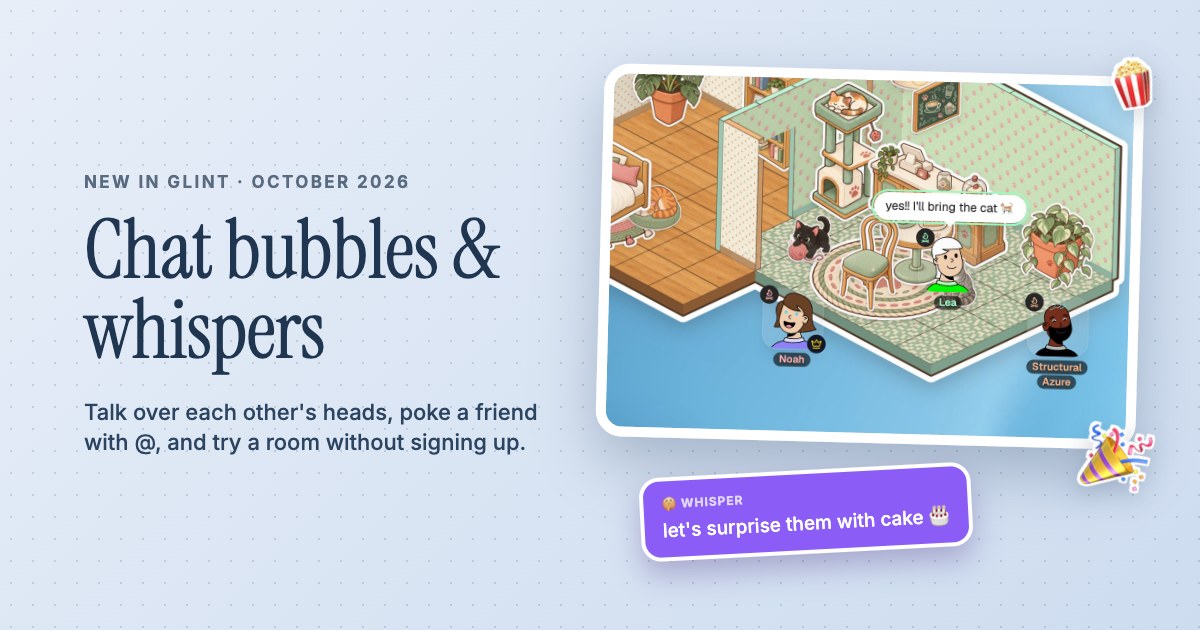
 Chat bubbles, whispers and Try it out
Show them.Talk it through.
The thing you are working on. The page you just found. Share a tab, a window or your whole screen, with your friends right there.

- Screen sharing with voice and video
- Stages for a shared viewing place
- Draggable, resizable pop-out views
A walkthrough has somewhere to happen
Place a stage from the Board tab, join it and use the screen sharing control. Your browser asks which tab, window or screen you want to show. Choose just the content you want friends to see, then talk through it using your mic. The stage stays on the canvas with your notes and files nearby, so you can refer to the things already in the room while someone explains a problem or shows a project.


Make small details easier to see
When a stage tile is too small for the thing someone is showing, hover over that participant and use the expand button. Their screen or camera opens in a separate window you can drag and resize. A shared screen takes priority, with the camera in a small picture-in-picture view. Put the window where it works for you and keep the rest of the room available around it as the conversation continues.
 Noah's screen
Share the sound your browser makes available
Glint supports screen share audio when the browser and the selected source provide it. For a video or another tab with sound, look for the audio option in your browser's sharing prompt. What is available varies by browser, device and whether you're sharing a tab, a window or the whole screen. For an embeddable YouTube video, the room's synced video player is another way to watch together without showing your screen.
A Little Setup.
Then You're Here.
Further reading See how stage pop-out views work
-
Put a stage in your room
Open Board in the dock, add a stage and join it with your friends. Turn your mic on so you can explain what you're about to show.
-
Choose what to share
Start screen sharing and select a tab, window or screen in your browser's prompt. Enable its audio option if the source supports sound and you want others to hear it.
-
Give the screen more space
Hover over the stage participant and expand their view when you need a closer look. Move and resize the pop-out window to fit the walkthrough you're following.
Questions
Can I share only one browser tab?
Your browser provides the screen sharing picker. On a supported desktop browser, it generally lets you choose a tab, window or screen. Choose the smallest source that contains what you want to show.
Will friends hear sound from my screen share?
Glint supports shared audio when your browser supplies an audio track. The available options depend on the browser, operating system and source you select. Check the audio option in the sharing prompt.
Can I make a shared screen bigger?
Yes. Hover over a participant on a stage and use the expand button. The view opens in a draggable, resizable window, with the shared screen taking priority over the camera.
Does everyone have to join the same call separately?
Voice, video and the stage live inside the Glint room. For private rooms, invite friends from Manage Users; for public or unlisted rooms, share the room link. Then join the stage together to see the screen share there.
There's More in Here.
Explore the featuresVoice and video
Talk while you build or watch. Turn on your camera, see who's speaking and keep chat in the room.
Virtual study room
Meet your study group in a shared room. Keep notes and PDFs nearby, ask questions and show a problem on screen.


Online coworking
Work alongside friends in a room you keep. Share a screen, collect project files and talk when you need a hand.
 Project refs
 figma.com
 refs.png
Make a room to share your screen
Make something small. Invite your people. See what it turns into.
Make your room for freeFree forever. Nothing to install.