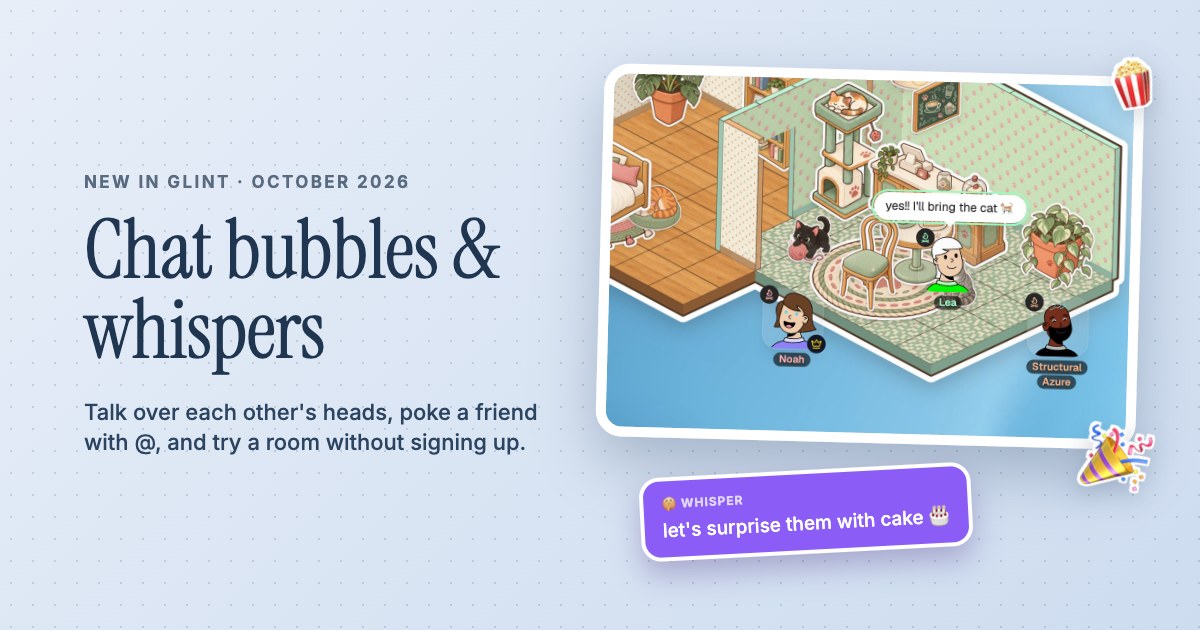
 Chat bubbles, whispers and Try it out
Come for a call.Stay for a while.
Turn on your mic, show your face or just be around. Voice, video and chat live right beside the room you make together.



- Voice and camera in your room
- See who is on the call
- Chat bubbles, mentions and whispers
Have something around the conversation
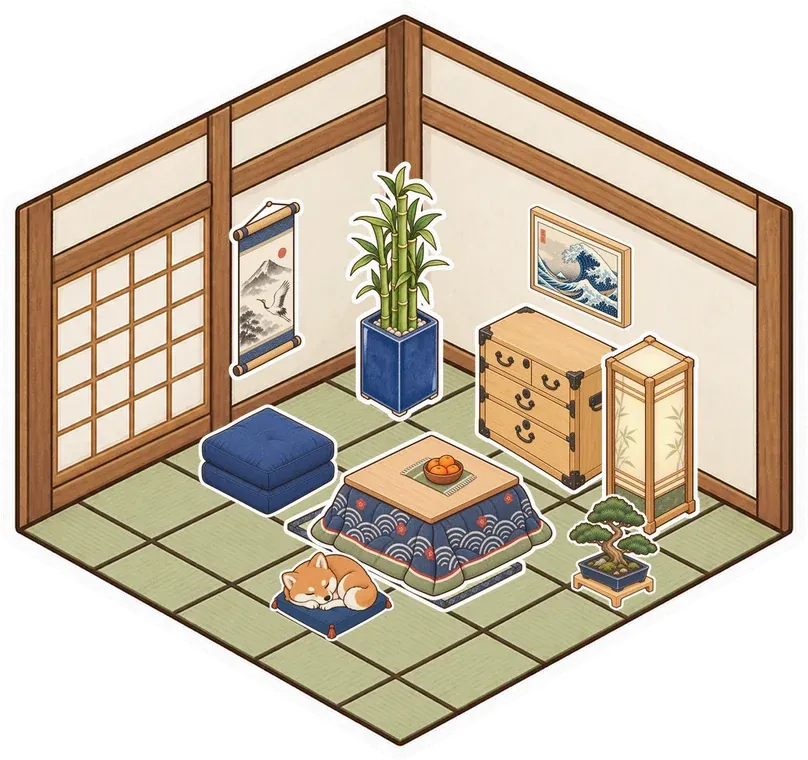
A Glint room gives a call somewhere to happen. Put a video on the canvas, build another room or open a shared note while you're talking. You can keep your camera on or just use voice. Double-click to put your avatar where you want it and it stays there while you work with the room's objects. Friends can see both you and the small things you're adding to the space.
Know who is there without asking
When someone turns their mic on, their face appears in the bar at the top of the room. The person talking gets a green ring and a label with their name. Press Enter to send a chat message and it appears over your avatar for a few seconds. Typing dots show that a reply is coming, and emoji sent on their own burst out of your avatar for everyone to see.

Make room for the smaller conversations
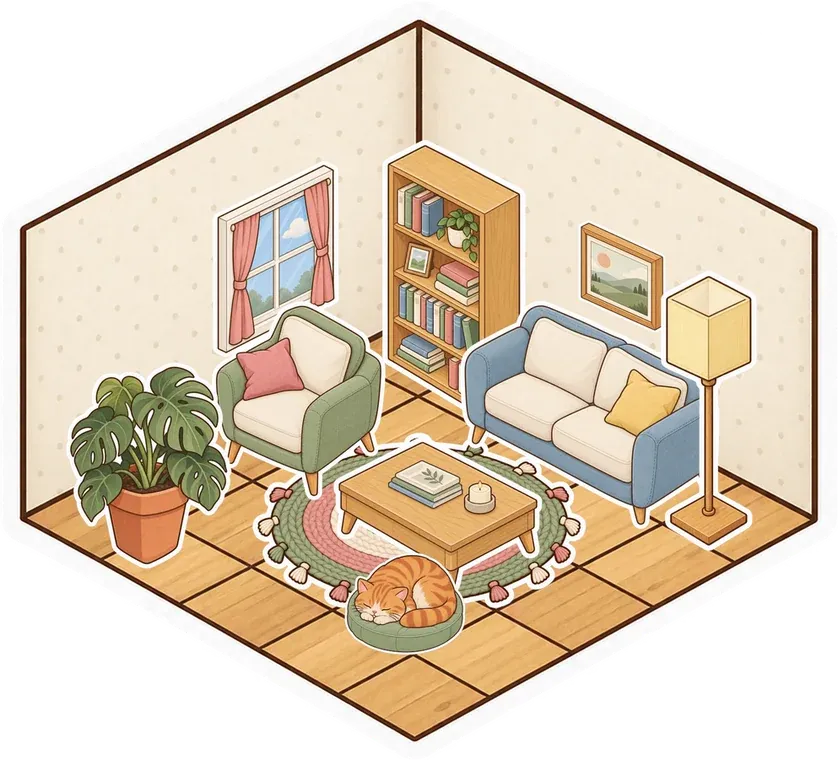
Use @ and a friend's name when you want their attention, or /w followed by a name to whisper to one person. Whispers are visible only to the two of you and are never saved. For a conversation within a larger room, a private stage keeps its participants' audio and video within that stage. Chat notifications can chime, stay quiet or turn off, depending on how much attention you want the room to ask for.
A Little Setup.
Then You're Here.
Further reading See chat bubbles, whispers and who's on the call
-
Meet in the same room
Create a free account and make a room. Invite friends from Manage Users if it is private, or share its link if it is public or unlisted. Pick a place for your avatar.
-
Turn on your mic
Use the room's microphone control and allow your browser to use your mic. Switch your camera on when you want video, or stay on voice while you hang out.
-
Let the room join in
Build a corner, add a video or open a document while you talk. Press Enter for a chat bubble, or mention a friend with @ when you need them.
Questions
Do I have to turn my camera on?
No. You can talk over voice, use text chat or turn on your camera. A room can hold people doing different things, so everyone can choose how they join in.
How do I see who is on the voice call?
Look at the top bar. It shows faces of people with their mic on, highlights the current speaker in green and names the person talking.
Can I send a private message inside a room?
Yes. Type /w and a person's name, followed by your message. Only that person receives the whisper. Type /r to answer the last person who whispered you. Whispers disappear after a reload.
Does Glint need a separate calling app?
No. Voice, video and chat are part of the Glint room in your browser. Your browser will ask for microphone or camera permission when you turn those on.
There's More in Here.
Explore the featuresScreen sharing
Show a tab, window or screen while you talk. Use a stage and pop out a larger view when needed.
Watch together
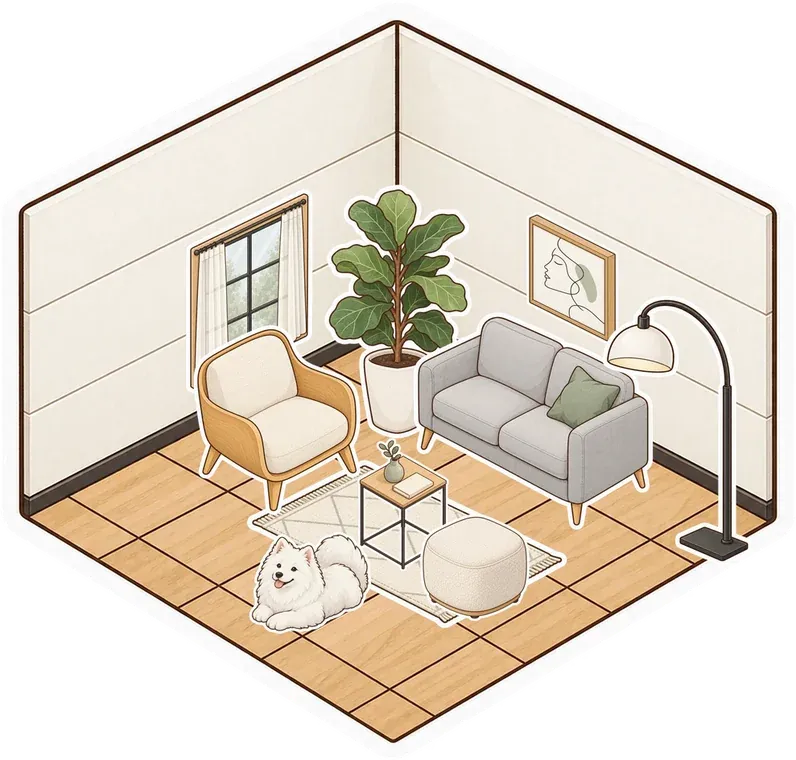
Watch YouTube with synced play, pause and seeking. Keep voice and chat beside the video in your shared room.
Online hangouts
Make a place for your group to return to. Talk, decorate, watch a video or just spend time together.

Make a room for your next call
Make something small. Invite your people. See what it turns into.
Make your room for freeFree forever. Nothing to install.