 Chat bubbles, whispers and Try it out
Watch together.Stay for the good bits.
Put a YouTube video in the room and react to the same moment. Synced play, pause and seeking, with voice and chat for the running commentary.



- YouTube videos in a shared room
- Play, pause and seeking stay in sync
- Voice and chat while you watch
One player everyone can follow
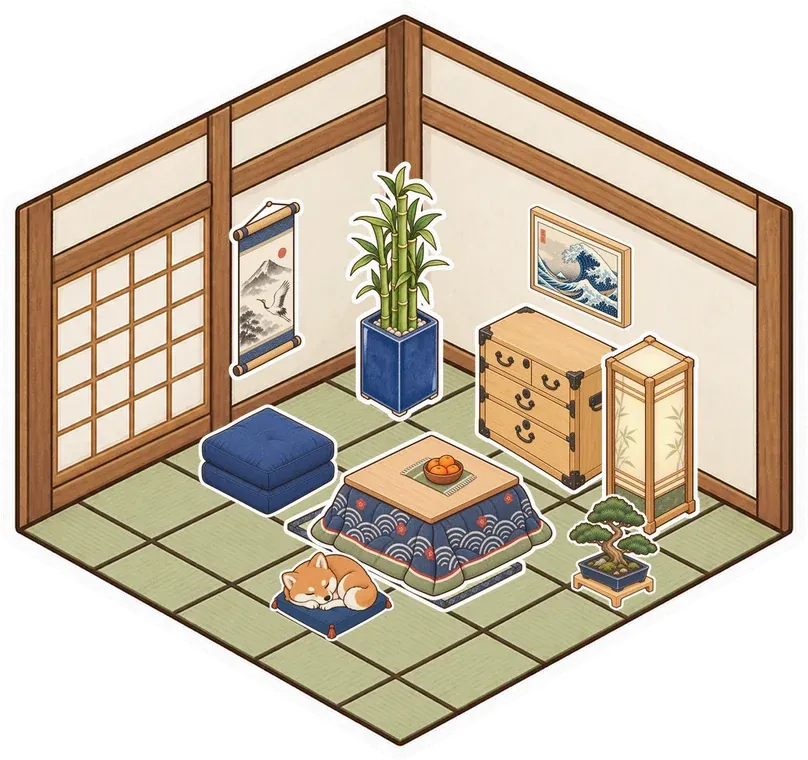
Add a video from Board in the dock, then paste a YouTube link or use the YouTube search in its options. Put the player somewhere everyone can find it and resize it for your room. When someone plays, pauses or seeks in the synced video player, the change is shared with the others watching. Choose a clip, a concert or a painting tutorial and you have something to do together besides another catch-up call.
 1:02:14
 48:30
48:30 2:00:00
Leave room for the reactions
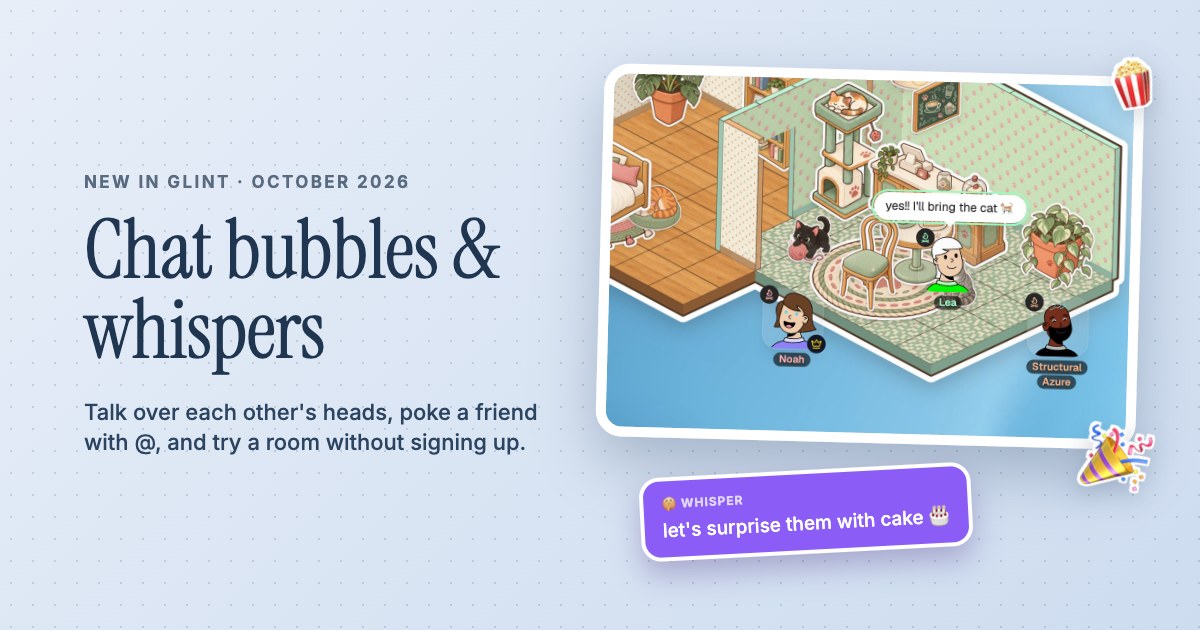
Turn on voice if you want to talk through the video, or keep the mic off and react in chat. Messages appear over your avatar, and emoji on their own burst out into the room. A popcorn reaction is there when words would get in the way. You can decorate a little viewing corner before friends arrive, then keep the room for the next video you find worth showing each other.
Choose a video that can play here
YouTube videos need to allow embedding to work inside Glint. Private, deleted or restricted videos may not play in the room. Glint also has an uploaded-video player, while other supported website embeds follow their own service's rules. Use the synced video tool for shared playback, and check a video before inviting everyone to watch. Your browser may ask you to press play once before it allows sound and playback to start.
A Little Setup.
Then You're Here.
Further reading Find an idea for your next evening together
-
Pick something to watch
Choose a YouTube video that allows embedding. Open Board, add a video and paste its link in the options, or find one with the YouTube search.
-
Bring friends into the room
For a private room, invite friends from Manage Users; for a public or unlisted room, share its link. Put the player where everyone can see it and turn on voice or stay in text chat.
-
Press play together
If playback asks you to join, select the video and use Join Watch in its action bar. Your browser may need that interaction before sound starts. Then use the shared player to play, pause or seek.
Questions
Can I watch YouTube together in Glint?
Yes. Add a video to the room and choose an embeddable YouTube video. The video player shares play, pause and seeking with the other people watching in the room.
Do we need to count down and press play at the same time?
The synced player shares playback controls. Each person may first need to use Join Watch in the video's action bar because browsers can block automatic playback, especially when a video has sound.
Does this work with Netflix or every streaming service?
This page describes Glint's synced YouTube and uploaded-video player. It doesn't promise Netflix or other subscription streaming support. External services decide whether their content can be embedded or shared.
Why won't a particular YouTube video play?
The video may be private, deleted, restricted or have embedding turned off. Try a different video that allows embedding. If the player asks for interaction, select it and use Join Watch in its action bar.
There's More in Here.
Explore the featuresVoice and video
Talk while you build or watch. Turn on your camera, see who's speaking and keep chat in the room.
Long distance couples
Build a place for the two of you. Decorate on a call, watch something together and leave notes between visits.
Online hangouts
Make a place for your group to return to. Talk, decorate, watch a video or just spend time together.

Make a room for watch night
Make something small. Invite your people. See what it turns into.
Make your room for freeFree forever. Nothing to install.